

How JAMB CAPS Works: A Step-by-Step Guide to Accepting Your Admission Offer
Getting your JAMB result is not the end of the admission process. For many candidates, it is where the confusion begins.
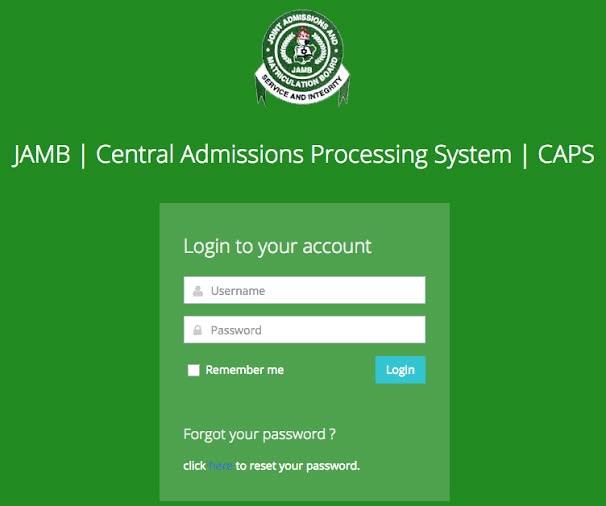
JAMB CAPS, the Central Admissions Processing System, is the official admission management platform operated by JAMB. Every candidate who sat for the 2026 UTME must use CAPS to monitor, accept, or reject any admission offer. Without completing this step, your admission is not recognised, regardless of what your school may have told you, what fees you may have paid, or what your name may show on any departmental list.
JAMB has made this position clear repeatedly: any admission offered outside of CAPS is considered illegal and will not be recognised. Until your admission shows on CAPS and you accept it there, it is not official.
Here is how the process works, step by step.
Step 1: Log in to the JAMB e-Facility Portal
The JAMB CAPS portal is accessed through the JAMB e-Facility platform. Enter the email address you used during your JAMB registration and the password you created during registration, not your Gmail password or any other password. Go to efacility.jamb.gov.ng
Step 2: Confirm Your O'Level Results Are Uploaded
Before checking your admission status, verify that JAMB has your O'Level results on file. Log in, click "Check Admission Status," then click "My O'Level" on the left menu. If the page is blank or shows "Awaiting Result," visit the nearest accredited CBT centre immediately with your original result certificate. Schools will not process your admission without this, and CAPS will not show you as admitted until it is done.
Step 3: Access Your CAPS Dashboard
Click "Check Admission Status," pick your exam year, enter your JAMB registration number, and click "Access my CAPS." Then click "Admission Status."
Step 4: Fix the Mobile Display Problem
This is where most candidates get stuck. If accessing JAMB CAPS on your phone, you must switch to Desktop Mode. Tap the three dots at the top right corner of your Chrome browser, scroll down, and tap "Desktop Site." The page will reload in full desktop view, and the sidebar menu will appear. If you have been seeing a blank page every time you check CAPS, your admission offer may already be sitting there waiting. Switch to Desktop Mode right now and check again before the window closes.
Step 5: Accept Your Offer
Once you are inside the CAPS dashboard, click "Admission Status" on the left-side menu. If a school has cleared you, you will see "ADMISSION OFFERED" and your photo. Below that, click "Accept Admission." A pop-up will ask for confirmation.
Alternatively, send the word ACCEPT to 55019 or 66019 using the same phone number you used for JAMB registration. After sending the message, wait a few minutes, then check your portal again to confirm that your choice has been recorded.
Step 6: Print Your Admission Letter
Once you have accepted, log in to the JAMB portal and print your JAMB Admission Letter. That document is very important; you will need it for your school's clearance, registration, and sometimes even for hostel application or verification. Keep both soft and hard copies in safe places.
Step 7: Complete School Registration
Print your original JAMB result slip, then go to your school's website to pay the acceptance fee and secure your slot on their local database. Check your school's specific deadline; institutions vary in how long they hold spaces after CAPS acceptance.
One Important Note
Admission offers on CAPS are not permanent. If you do not complete this step, your admission is not officially recognised by JAMB, even if you have paid school fees or received a physical letter. Act immediately when your status changes to "Congratulations."
Once your admission is secured, your next priority is Post-UTME screening. Most universities conduct their own screening exercise after JAMB CAPS, and scores from that screening contribute to your final admission standing. ExamGuide's Post-UTME question bank at examguide.com covers screening past questions for Nigerian universities across all faculties. Start practising before your school announces dates.
No comment found
Related Posts
JAMB Syllabus vs Past Questions: How to Use Both Without Leaving Important Topics Out

Direct Entry vs UTME: Comparing Admission Routes for Nigerian University Applicants

JAMB Subject Combination for Competitive Courses: Requirements for Medicine, Law, Engineering and Computer Science

What Happens After Writing JAMB UTME? A Complete Guide from UTME Result to Admission
JAMB English Topics: How to Prepare for JAMB UTME English